

Access the form
To start, you can access the form via this link or by scanning the QR code – both take you to the same place.
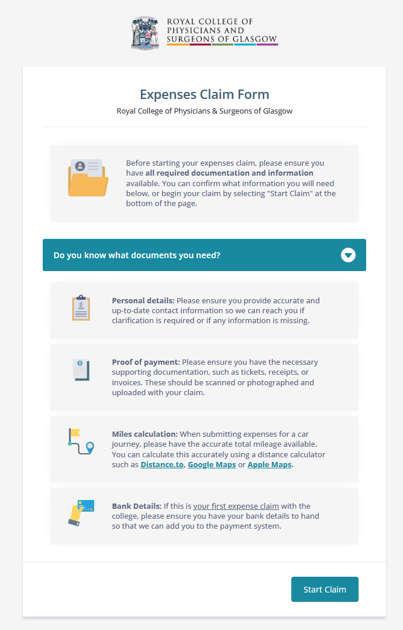
The landing page will provide you with information on documentation you will need before starting the form. You can review this information by clicking the arrow to open the drop-down menu.
Please note that you should only submit claims for one event, committee meeting or exam at a time.
Steps to submit claim
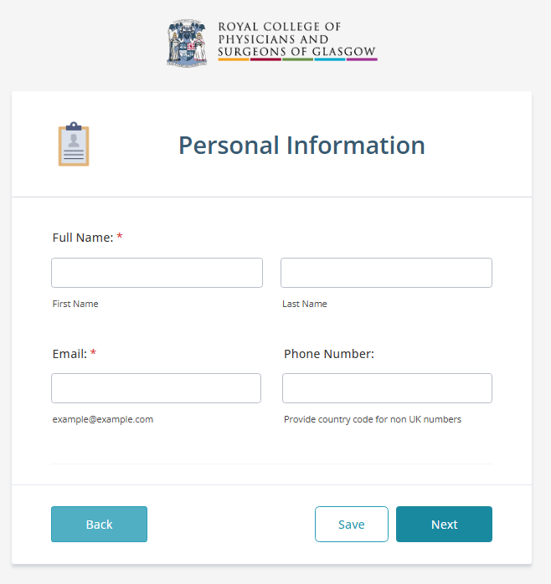
Step 1: Click on “Start claim” and enter your personal details. Please ensure that you use information already known to the College.
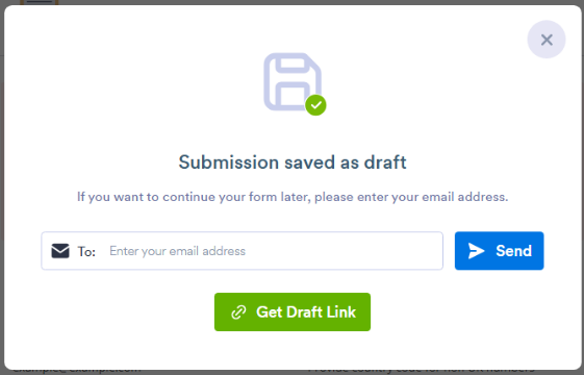
If you wish to leave the form and return to complete it at a later stage, click on “Save”, which will present the following screen. Please enter your email address and click “Send” to receive a link to the saved claim form.
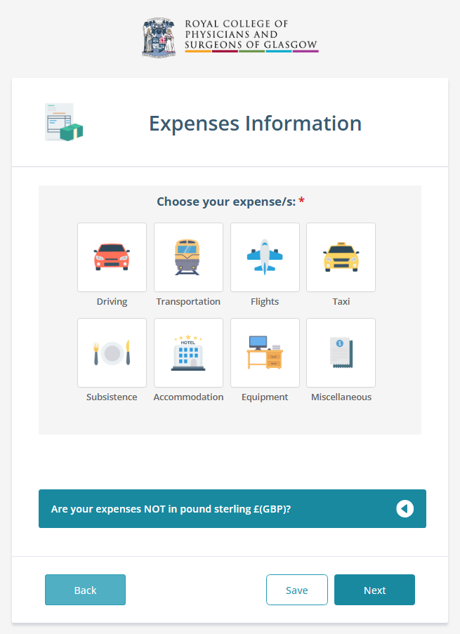
Step 2: After entering your details, you will be required to select the expenses type. Please note that you can select more than one type if required.
If your expenses are in a different currency, use the built-in currency converter. Click the arrow next to the currency field to open the converter.
Please note that flights, accommodation, equipment and miscellaneous expenses cannot be processed without a receipt or proof of purchase. We recommend always keeping a proof of purchase to ensure smoother processing of expenses. Digital receipts and emails may be submitted as proof of purchase.

Please note that for taxis, accommodation, equipment and miscellaneous expenses you will be required to enter the VAT amount. Please select the correct rate as shown on your proof of purchase.
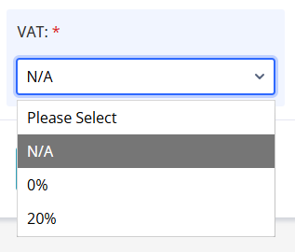
Step 3: After selecting all your expenses type, you should then work through the form to enter the details for each expense. Enter the required details and upload receipts where requested.
If you have more than one expense, use the “Add new” button to enter another expense.
Use the “Back” and “Next” buttons to navigate between expense types. You can go back to the first page to add another expense type if needed.
Once you have entered all your expenses, click “Next”. This will take you to the Expenses Summary.
Step 4: Please review the summary and ensure that all details are correct. If you need to amend any of these expenses, you can use the “Back” button to return to previous pages.
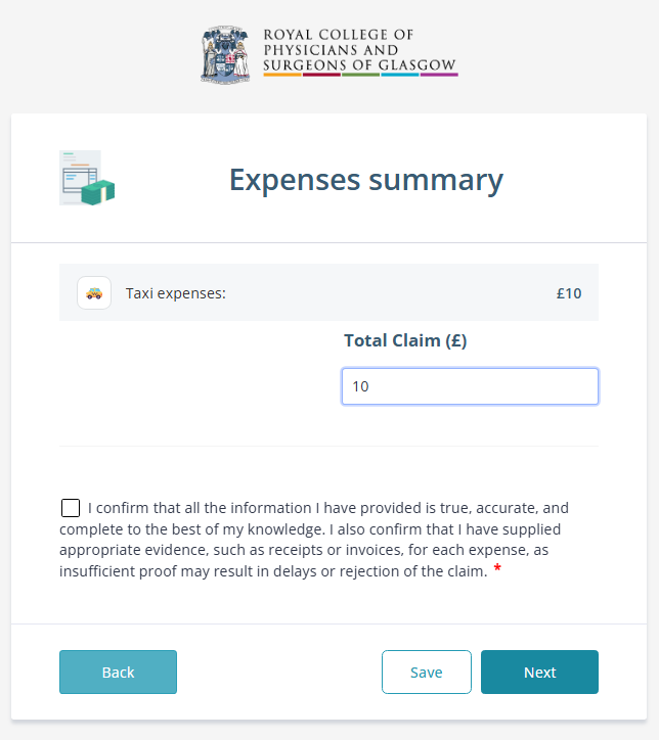
Step 5: After reviewing, tick the disclaimer checkbox to confirm and progress to the next page.
You will now be required to enter details for the approval process. Please see the table below to help you choose which option to select.
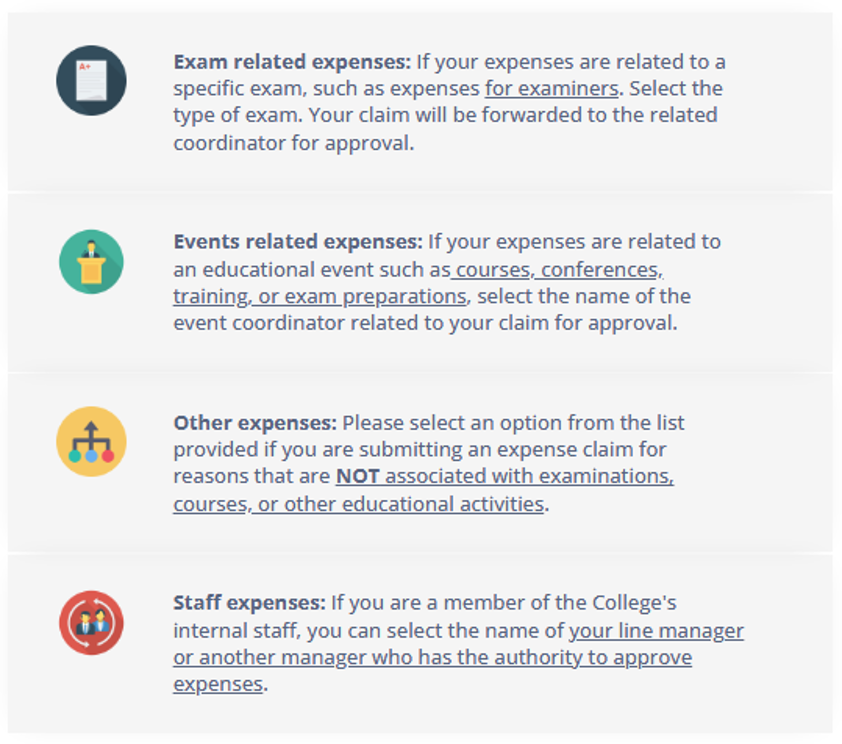
Complete the required approval information for your claim and then click “Next”.
Step 6: Finally, after completing the approval information page you will progress to the Payment Details section.
If you have submitted an expense claim to the college before, including with the previous system, select ‘YES, I am already on the system’. You can then click on ‘Submit claim’ and you will be provided with a reference number which will also be sent to your email address for confirmation.
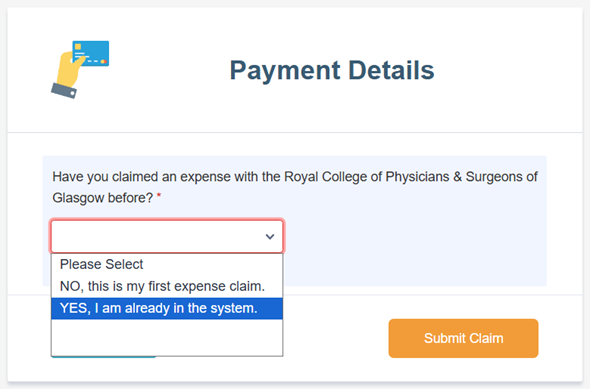
If this is your first expense claim with the College, please select the “NO, this is my first expense claim” option. You will then be required to provide your bank details. Your details will be stored by our finance team for future use.
The personal and bank details you provide will be used solely to process your expenses claim. Your information will be held securely within Jotform and will not be used for any other purpose. You can find out more about how we handle your data in our privacy notice.
Once finished, click “Submit claim”. You will be provided with a reference number which will also be sent to your email address for confirmation.
Contact and support
If you have any questions about your expenses claim or need assistance completing the form, please contact us at webmaster@rcpsg.ac.uk and a member of the team will get back to you.
Please include your reference number in any correspondence if you have already submitted a claim, as this will help us investigate your query as quickly as possible.